Monitors for Work, Gaming & Creative Professionals – UK Online Store
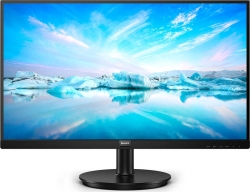
£129 | |
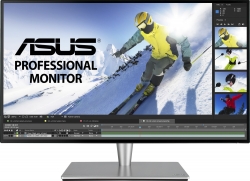
£479 | |

£79 | |
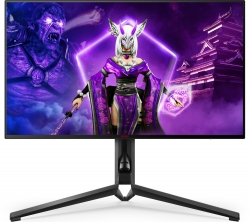
£709 | |
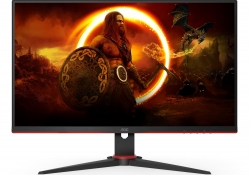
£119 | |
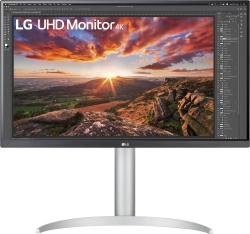
£289 | |

£58 | |
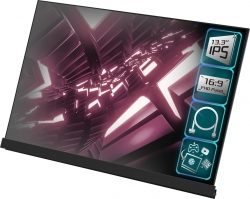
£99 | |
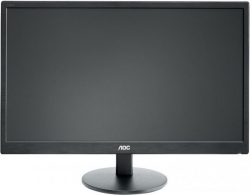
£79 | |

£129 | |
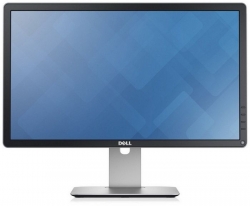
£79 | |
£129 | |

£99 | |
£249 | |

£79 | |

£91 | |
Monitors for Work, Gaming & Creative Professionals in the UK
Selecting the right monitor is essential for productivity, visual comfort, and accurate color representation.
At Laptop-UK.com, we provide a carefully curated range of monitors from trusted brands, with transparent specifications, verified warranties, and UK-based customer support to help you make informed purchasing decisions.
Why Choosing the Right Monitor Is Important
A high-quality monitor can reduce eye strain, improve focus, and enhance efficiency during long hours of work or creative tasks.
Whether you are a professional, gamer, student, or content creator, understanding monitor features ensures you select a display that meets your needs safely and effectively.
Key Features to Consider When Buying a Monitor
When choosing a monitor, consider the following verified factors for a reliable and risk-free purchase:
- Screen Size & Resolution: Select a size and resolution that fits your workflow. Common professional options range from 24–27 inches with Full HD (1920x1080), 2K (2560x1440), or 4K (3840x2160) for clear visuals and expanded workspace.
- Panel Type: IPS panels provide accurate colors and wide viewing angles, ideal for design and collaboration. TN panels are affordable for basic tasks, while VA panels balance contrast and color.
- Refresh Rate: Standard office work can use 60Hz, whereas gaming, video editing, or fast-moving content benefit from 75Hz, 120Hz, or 144Hz panels.
- Connectivity: Ensure compatibility with laptop or PC ports, including HDMI, DisplayPort, USB-C (Thunderbolt), and VGA. Built-in USB hubs can improve convenience.
- Ergonomics: Adjustable height, tilt, swivel, and rotation reduce strain and improve long-term comfort.
- Eye Care: Flicker-free technology and blue light filters help reduce eye fatigue during extended use.
- Color Accuracy: Essential for creative professionals. High-end monitors often support wide color gamuts for precise design work.
- Response Time: For general work, 5ms or less is adequate. Fast response times are recommended for gaming and video editing.
- Extra Features: Consider built-in speakers, picture-in-picture (PiP), KVM switches, or cable management for productivity and convenience.
- Brand Reputation & Reviews: Choose monitors from trusted manufacturers with verified reviews to ensure reliability and durability.
- Warranty: Check manufacturer warranty coverage to protect your investment and ensure proper support.
- Budget: Balance affordability with features to match your intended use.
How to Connect a Monitor to Your Laptop
Setting up a monitor is straightforward when following verified, safe steps:
- Check Compatibility: Confirm your laptop and monitor ports match (HDMI, DisplayPort, USB-C, VGA).
- Power Off Devices: Prevent damage by turning off both devices before connecting.
- Connect the Cable: Attach the appropriate cable between laptop and monitor.
- Power On: Turn on both devices after connection.
- Select Input Source: Monitors often auto-detect inputs; manually select if necessary.
- Adjust Display Settings: Configure resolution and display mode via Windows Display Settings or macOS System Preferences.
- Adjust Monitor Settings: Use brightness, contrast, and color settings through the monitor menu for optimal viewing.
- Test Setup: Verify functionality by moving windows and checking color accuracy.
Selecting an External Monitor for Your Laptop
Focus on your use case to choose a monitor that enhances productivity and reduces eye strain:
- Port compatibility (HDMI, DisplayPort, USB-C, VGA).
- Screen size and resolution suitable for your workspace.
- Panel type for color accuracy and viewing angles.
- Refresh rate aligned with work or gaming needs.
- Ergonomic adjustments for long-term comfort.
- Eye care technologies like flicker-free and blue light filters.
- Extra features such as USB hubs, PiP, and built-in speakers.
- Trusted brand reputation, verified reviews, and warranty coverage.
Our Commitment to Safe and Reliable Monitor Purchases
All monitors at Laptop-UK.com come from verified brands with manufacturer warranties. We provide transparent specifications, UK-based support, and clear delivery information to ensure safe and informed purchases.
Customers can rely on us for guidance, returns, and setup assistance, creating a trustworthy and compliant buying experience across the UK.
Frequently Asked Questions
Which monitor size is best for work?
For most office or professional tasks, 24–27 inches with Full HD or higher resolution provides the best balance of workspace and readability.
Do I need an IPS panel?
IPS panels are recommended for accurate color and wide viewing angles. TN or VA panels can suffice for general office tasks and casual use.
How do I safely connect a monitor to my laptop?
Use compatible ports, power off devices before connecting, attach cables, power on, and adjust settings via your operating system. This ensures safe, reliable operation.
Which features help reduce eye strain?
Flicker-free technology, blue light filters, and ergonomic adjustments help maintain eye comfort during prolonged use.
Can I use a monitor for both work and gaming?
Yes. Select monitors with appropriate refresh rates, low response times, and resolutions that support your professional and gaming requirements.
|
|
|